Give your Desktop a Mozaic Touch

Experience the Windows 8 Metro Stlye UI on your Computer

Windows 7 God Mode

Get an Advanced Control Panel in Windows7 by enabling God Mode

Download Internet Explorer 9

Enjoy The Internet in a New and Secure Way

Microsoft Office 2010 Professional Activation

Activator for Microsoft Office 2010 Professional 100% Working..!!

Flash Wallpapers for Mobile

More than 175 Flash/SWF wallpapers for Mobile with System Info

Showing posts with label Windows tweaks. Show all posts

Tuesday, December 27, 2011

See the Aero Glass Animation effects in slow motion

This is how aero glass looks when we minimized the window

For those of you have have the Aero Glass interface on your computer, it is possible to hold down the shift key while closing, opening, and minimizing a windows to see the animation in slow motion.  If you would like to test this out, just follow the steps below:
  1. Open up Regedit.
  2. Navigate thru HKEY_CURRENT_USER, Software, Microsoft, Windows, DWM.
  3. Create a new DWORD called AnimationsShiftKey inside the DWM folder.
  4. Set the new DWORD that you just created to a value of 1.
  5. Click on start >> cmd >> (right click) run as administrator
  6. Run net stop uxsms at administrative rights command prompt followed by net start uxsms to restart the DWM engine.
Once you have restarted the DWM engine, just hold down the shift key to see any of the window animations in slow motion.

Tip: Hold down shift and start Flip 3D. Very Cool!

Monday, December 26, 2011

Create a Flip3D Taskbar Icon in Windows 7

Flip3D was a fun and cool looking feature in Windows Vista that can be very useful for switching between windows. With the improved Windows 7 taskbar, Flip3D was replaced with improved thumbnails and Aero Peek. Those are both good alternatives but I like the speed of viewing all my open windows at once and switching with just two clicks.

This article will show you how to create a Flip3D icon on the Windows 7 taskbar:
 
 
  • Right click on the Desktop and select New and then Shortcut.
  • Type in RunDll32 DwmApi #105 in the location box and click Next


  • Type in Flip3D as the Name and click Finish.
  • You will now have an shortcut on the desktop that will launch Flip3D but it has the wrong icon. 
  • Right click on the Flip3D shortcut and select Properties.


  • On the Shortcut tab click the Change Icon button. 
  • Change the Look for icons in this file text box to C:\windows\explorer.exe and it Enter.  The Flip3D icon will now be available. Select it and click OK.


  • Click OK to close out the shortcut properties window.
  • Finally, just drag and drop the new shortcut on the Windows 7 taskbar to pin it. 
  • Now click on it and see the magic. :)

Saturday, December 24, 2011

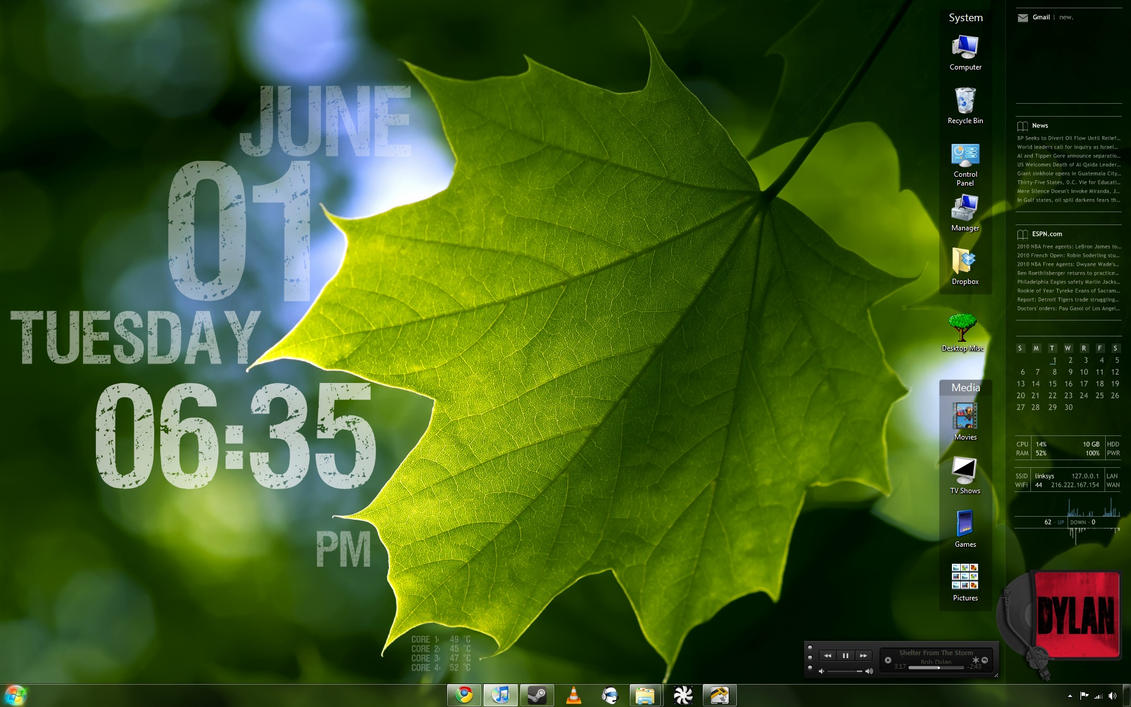
Customize your Desktop : Rainmeter

What's on your desktop?


 Rainmeter displays customizable skins, like memory and battery power, RSS feeds and weather forecasts, right on your desktop. Many skins are even functional: they can record your notes and to-do lists, launch your favorite applications, and control your media player - all in a clean, unobtrusive interface that you can rearrange and customize to your liking. Rainmeter is at once an application and a toolkit. You are only limited by your imagination and creativity. Rainmeter is open source software for Windows XP/Vista/7 distributed free of charge under the terms of the GNU GPL v2 license.

Download Rainmeter

Thursday, October 20, 2011

Change The "Shutting Down" text in Windows

Aren't u bored of the usual "Shutting Down" text message that gets displayed while your windows shuts down...
Don't know about others...But we are indeed...
So..this is what you can do...


here's how you change it... 

Step 1. Download the latest version of Resource Hacker and install it.
Step 2. Navigate to the following path from the Windows 7 explorer:
C: > Windows > System32 > en-US > wininit.exe.mui.
 Note: You are going to edit the file wininit.exe.mui. As it is a system file, Windows 7 will not allow to modify it without taking the ownership.

 * To take the ownership of a file from the context menu download the Reg file from the following link, extract the archive and double click on the file Add_Take_Ownership and click merge. 


Step 4. Close the window and run the Resource Hacker as administrator by right-clicking on the shortcut from Start > All programs > Resource Hacker > Resource Hacker and choosing “Run as administrator” (click on “Yes” if the User Account Control message appears).


Step 5. In the Resource Hacker window click File > Open


and select the folder
C: > Windows > System32 > en-US
from the drop-down menu, labeled as “Look in:”. Change the file types to All files(*.*)


and select wininit.exe.mui then click Open.


Step 6. Expand String Table then 63 and click on 1033.


Step 7. At the 1002 location of the right pane, change the text “Shutting down…” to “Good bye…” or some thing that you want to show.


Step 8: Click on “Compile Script”.
Step 9. Save the changes by clicking File > Save.


Restart your PC to see the changed text...
Cheers :) 

PS : Let us know if any problem arises by dropping your comments.