Give your Desktop a Mozaic Touch

Experience the Windows 8 Metro Stlye UI on your Computer

Windows 7 God Mode

Get an Advanced Control Panel in Windows7 by enabling God Mode

Download Internet Explorer 9

Enjoy The Internet in a New and Secure Way

Microsoft Office 2010 Professional Activation

Activator for Microsoft Office 2010 Professional 100% Working..!!

Flash Wallpapers for Mobile

More than 175 Flash/SWF wallpapers for Mobile with System Info

Showing posts with label Internet. Show all posts

Friday, December 16, 2011

Beware Nanny / Au Pair scams spread via spam email

          It's time to hang up my spurs as a Naked Security writer, as I have been offered an exciting new career as a nanny. I must admit it took me by surprise when the email offering me the position arrived in my inbox, but when I read the details of the job they were offering it seemed too good to be true.
  • A starting wage of £2700 per month, plus £700 per week for "petty expenses" - with room for negotiation upon starting.
  • My own private well-furnished master bedroom, with laptop, internet connection, TV and "other necessary gadgets".
  • Freedom to study in any school of my choice, with tuition fees all paid for.
  • Don't have to work at weekends, so free to explore London or hang-out with other well-paid nannies.
          Surely I would be crazy to turn this job down? There can't be many nannies being offered an annual salary of £32,400 (with an additional £36,400 for petty expenses!) just for carting a couple of kids to school every weekday. Not forgetting the internet connection and paid-for tuition fees too. I wonder how they selected me out of all of the email addresses on the internet? Here's one section of the email:
SCHEDULE
Your job is not a hard one,I do not believe in supervising or monitoring people to do their job.I believe people should be giving a free role in whatever they do.So,I believe you should be able to perform well without being told.All entails preparing Our kids for schooling in the morning,taking them to the point where the school bus picks them up to school.You will have a free period then whereby you can do any vocation or practice whatever is at your disposal.Then you help monitor them after they are brought home by the school bus,just to make sure they are alright till my wife's arrival from work.

SALARY
You will be entitled to a pay of 2700pounds every month while you will also be given an entitlement of 700pounds every week for petty expenses which you might need for yourself.This salary is subject to negotiations for an upward review upon your arrival.

ROOM
A well furnished Master bed room will be made available for your personal use soon as you get here.there will be your personal laptop connected to the internet, TV and other necessary gadgets at your disposal.There will be enough privacy for you,i guess you'll really like it.
          Of course, for anyone who hasn't realised already, it's a scam. If you respond to the email, the scammer will ask you for all sorts of personal information. That could be bad enough - but things can get even more sneaky with nanny/au pair scams.

          For instance, the prospective employer might send you an advance payment which they tell you to put in your bank account. However, before the cheque has cleared you receive a message from the scammer saying that some terrible tragedy has occurred (maybe his wife and children have been killed by a runaway steam roller) and that he no longer requires your services.

          Would you mind awfully, asks the poor grief-stricken scammer, wiring most of the money back to him. Perhaps via Western Union to resolve his personal situation as quickly as possible. Thinking that you have received his cheque, and assuming it will clear into your account, you send the scammer money and are ultimately left with a hole in your finances.

          Once again, the old adage applies. Just because something is written in a nicely proportioned font, doesn't mean that it's true. Stop believing everything you read on the internet and keep your wits about you.
Otherwise, you could fall victim to an email scam.

Tuesday, October 18, 2011

Google publishes web safety advice for 'Good to Know' campaign

          Google has launched a campaign promoting online safety, in association with the UK's Citizen's Advice Bureau. The campaign, which will include adverts in newspapers, on public transport and online, is being run with the hope of encouraging internet users to take more care over their online activities - including using more secure passwords, and remembering to log out of websites when they have finished using them.
Awareness campaigns about online safety like this are important, as it's clear that most internet users are pretty clueless about how to best secure their computers and surf safely online.

          This isn't because the public is disinterested in protecting themselves, but due to the fact that many people simply don't know where to turn, or how to translate complicated buzzwords, geek talk and terminology into simple easy-to-understand English. So, campaigns like Google's "Good to Know" one are a *good* thing, as they translate sometimes complicated safety advice into simple terms. Google, of course, has an interest in people not turning their backs on the internet - it wants users to feel safer online, as that will ultimately increase the popularity of the internet and help Google grow.
Gmail
           To their credit, Google provides a number of technologies to help users defend their accounts from being hacked - but only a minority of users seem know about them. If you haven't already done so, check out my advice on how to stop your Gmail account being hacked, for instance.
It's notable that part of the "Good to Know" campaign appears designed to reassure internet users about the data that Google collects about them to provide its services.

          The critical thing, however, will be what I call my "Aunty Hilda test". If the only people who hear about this advertising campaign are people who are already techie geeks or people who work in information security then it will have failed. If, however, my Aunty Hilda hears about the campaign - and genuinely learns something about how to protect herself online - then it truly will have succeeded. With cybercrime and internet fraud on the increase - it's never been more important to raise awareness and give people simple instructions on how to be safer on the net.
More updates available on www.google.co.uk/goodtoknow.

Friday, May 6, 2011

Firefox 5 beta released... :-)


The Web is all about innovation, and Firefox sets the pace with dozens of new features to deliver a faster, more secure and customizable Web browsing experience for all.

User Experience. The enhancements to Firefox provide the best possible browsing experience on the Web. The new Firefox smart location bar, affectionately known as the "Awesome Bar," learns as people use it, adapting to user preferences and offering better fitting matches over time.

Performance. Firefox is built on top of the powerful new Gecko platform, resulting in a safer, easier to use and more personal product.

Security. Firefox raises the bar for security. The new malware and phishing protection helps protect from viruses, worms, trojans and spyware to keep people safe on the Web.

Customization. Everyone uses the Web differently, and Firefox lets users customize their browser with more than 5,000 add-ons.

Download
password: easyhacks.tk

Thursday, December 16, 2010

Google Sharing: Hide yourself from google!!!

"If you have something that you don’t want anyone to know, maybe you shouldn’t be doing it in the first place."
 
     Suppose, I wouldn't want Google to know that I am searching for young singles on the internet, you would think that logging out of your Google account might keep Google from mapping the search queries to a specific user. But you are wrong, Google can still track your usage using some smart algorithms which Google is very good at.

     Google knows whether you were logged in to a Google account or not, they know everything you've ever searched for, what search results you clicked on, what news you read, and every place you've ever gotten directions to. Most of the time, Google Analytics even know which websites you visited that you didn't reach through Google. If you use Gmail, they know the content of every email you've ever sent or received, whether you've deleted it or not. These days they are even branching out into collecting your realtime GPS location and your DNS lookups. In short, not only do they know a lot about what you're doing, they also have significant insight into what you're thinking.

So how do you protect your privacy from being exploited?
A very nice firefox add-on known as GoogleSharing.

About GoogleSharing
      GoogleSharing is a special kind of anonymizing proxy service, that will prevent Google from tracking your searches, movements, and what websites you visit. GoogleSharing is designed to anonymize your traffic exclusively your communication with Google.

How GoogleSharing hides you?
      GoogleSharing is a system that mixes the requests of many different users together, such that Google is not capable of telling what is coming from whom. GoogleSharing aims to do a few very specific things:

1. Provide a system that will prevent Google from collecting information about you from services which don't require a login.
2. Make this system completely transparent to the user. No special websites, no change to your work flow.
3. Leave your non-Google traffic completely untouched, unredirected, and unaffected.


Working:-

      The GoogleSharing system consists of a custom proxy and a Firefox Addon. The proxy works by generating a pool of GoogleSharing "identities," each of which contains a cookie issued by Google and an arbitrary User-Agent for one of several popular browsers. The Firefox Addon watches for requests to Google services from your browser, and when enabled will transparently redirect all of them (except for things like Gmail) to a GoogleSharing proxy. There your request is stripped of all identifying information and replaced with the information from a GoogleSharing identity.

       This "GoogleShared" request is then forwarded on to Google, and the response is proxied back to you. Your next request will get a different identity, and the one you were using before will be assigned to someone else. By "sharing" these identities, all of our traffic gets mixed together and is very difficult to analyze.

      The GoogleSharing proxy even constantly injects false but plausible search requests through all the identities.
You can use Google without being tracked by IP address, Cookie, or any other identifying HTTP headers. And only your Google traffic is redirected. Everything else from your browser goes directly to its destination.

      Where Google has failed to provide universal HTTPS support, GoogleSharing has. All requests to a GoogleSharing proxy are sent via HTTPS. These eventually have to be proxied out as HTTP from GoogleSharing to Google, but your traffic is encrypted on the first path.
Running A GoogleSharing Proxy

       Proxy code is available so that anyone can run a GoogleSharing proxy instance in addition to the one that they're running.

Experts Review:-
  1. GoogleSharing is a very light weight proxy service without any pesky installation.
  2. Keep in mind however that GoogleSharing is not an anonymizer, so do not rely on for IP spoofing.
  3. It integrates very well with firefox and you can toggle it on or off just by a single mouse click.
  4. It does not hinter your browsing speed like most proxies do.
  5. The HTTPS support is no hoax, it does provide an end-to-end encryption up to the GoogleSharing server.
  6. You can also provide your resources for contributing to a GoogleSharing server.  
Direct Download (from google)

Friday, December 10, 2010

How To Setup Your Own DNS (Domain Name Server)

For Advanced Users and Professionals

This is only a quick tutorial, there are literally hundreds of little tricks you can do with a DNS, but this will get your basics up and running. We are assuming you want to setup a windows DNS server, but the principals will work for most servers.

You will need..
  1. A domain name over which you have full control.
  2. DNS server software(Windows server always comes with one of these).
  3. At least one fixed IP address, allthough two is highly desirable.
  4. An idea of what services you want on your server. 
The first thing you need to do is create your new domain entry. 
In windows this is called a "Zone" and you will have one for every domain name you have. Add your main domain in the forward lookup zone as a Primary zone, which will be in the format "Domainname.com", or .co, .in, or whatever, you shouldn't need any more details for this bit. Do *not* allow dynamic updates unless this is a local network DNS. Once it is created you will have 2 entry's under your new domain, "SOA"(Or Start of Authority) and "NS"(Or Name server). If you want a 100% compliant DNS then you should now follow the same process but adding a domain as a reverse lookup zone. Any changes you make to the forward lookup should have the "Update Reverse Lookup" option ticked if its available, if not you must update the reverse zone manually(This is very important).

Now edit the "NS" entry in your forward zone to "NS0.DomainName.Com", and set it to the relevant IP address. Add another (NS) record and set it to "NS1.DomainName.Com". If using 2 IP address, try to make NS0 the first IP. Now you need to configure the SOA entry in the forward lookup zone. The serial number should be changed to a date followed by a number in this format "YYYYMMDDnn", this is not required, but is advised by RIPE. The primary server will be the "NS0.domainname.com" entry you just made and the responsible person should be left for now. The refresh interval should be set somewhere between 1200 to 43200 seconds, the retry should be between 120-7200 seconds and the expires after should be around 2-4 weeks(I'll let you work out the seconds for that). The minimum TTL is quite important, and depending on what you are going to do with the domain, you might need to tweak this a bit. Typically a value between 1-3 hours should be used. Now go to your "Name server" settings in your SOA record(In windows this is a tab in the same window) remove the defaults, and add your two Name servers that you just setup. We will come back to the SOA record later, but for now we need to do some more stuff.

If you want a website, then your going to want the WWW. setting up. We will set it up as an "A" record, which means it is a separate top level record and will be populated separately from other entries. So add an "A" to your forward lookup zone and put the entry as "WWW", and set the IP address to wherever you want the website to be. This will be where the domain always goes, and it could be anywhere. Just make sure there is a web server waiting there for it. If you want FTP, then setup the same thing but with "FTP" in the entry. You will now also have to setup "A" records for the NS0 and NS1 name servers that you added previously, just make them the same as WWW and FTP, but make sure the IP addresses match the ones used for setting up the "NS" records. Also add a blank "A" record, this will make sure that "domainname.com" works as well as "www.domainname.com".

Now you should decide whether or not you want to have mail on this domain. It is advisable that you set one up, even if it just to catch domain mail about abuse or potential problems that might occur. You can find plenty of high quality free mail servers out there, but I would recommend "Mail Enable", its free and provides everything you would want, but if you want webmail you do have to pay something extra for it. We will now configure the MX records. Add an "A" name for your mail server, you can add 2 if you want, but for simplicity I would advise staying with 1. We will call ours "Mail.domainname.com", and point it to one of our IP addresses. Now add an "MX" record in the Forward Lookup zone, giving it the full "A" record you just entered "Mail.domainname.com", and do not setup a host or child domain, just leave it blank.

This next step isn't needed, but is again highly recommended.

Now to finish the SOA you need to add two more records. A "RP" entry, which is a Responsible Person, and they will be the contact point for domain complaints and a "MB" entry, which is a mailbox entry. The "MB" should just be pointed to the mail server domain name "Mail.domainname.com", and the "RP" should have the host or domain set to the name of your mail box. So for this server it will be "Tony.Domainname.com", and the mailbox will be set to the "MB" record you just made. Don't worry about the RP address having no "@" in it, this is the expected format for an "RP" entry. You will now have to go back into the SOA and change the responsible person to the new "RP" record you just made.
And thats it, your done! You can add as many "A" records as you like to point to other web servers, or a multitude of FTP sites. And you can add "CNAME" records to basically point to another name, usually an "A" record, like an alias.

Now before you switch your domain on, you need to check that the server is performing properly. So go to www.dnsreport.com, and run the report on your domain "domainname.com", and it will give you a very detailed report of any problems, and even a short description of how to fix the problems. If all is OK, then you are ready to go live. If your domain name is new, or not currently hosted anywhere then the first thing you should do is re-point the domain at your new server. You will typically do this with the provider who owns the domain, and it will be different with all hosts. But the basic settings are the same. You will be asked for at least 2 name servers and ip addresses to go with them. Just put in "NS0.domainname.com" and "NS1.domainname.com" and put in the correct IP addresses. Make sure you do not mess this up, as changes to your main NS servers could potentially take several days to straighten themselves out. Update these settings, and then sit back and wait. You can do a whois on the main DNS server of your domain provider to check if the settings have worked, but again this doesn't always work. For the big 3 domains(.com .net .org) you can do a whois on the network associates site to see the changes instantly. You can also track the progress of the domain changes by doing an NSLookup in dos, like this...

c:\nslookup ns0.domainname.com NS0.yourprovidersdns.com

That will give you the entries your domain provider has

c:\nslookup www.domainname.com ns0.domainname.com

And this will tell you if the changes for your domain have gone through to your ISPs DNS yet. It should give you back the IP address of your new DNS server.
You should always make sure your server is backed up, and that you refresh or update the DNS when you are making changes. 

Tuesday, November 30, 2010

Configure Email on your cell phone : The Tutorial

These days almost all the phones from low-end to high-end if multimedia enabled support the Email function with an inbuilt phone application in the messages menu which we hardly use or notice. If you these applications are fantastic and work just very fine if configured correctly. 
The question here is most of us often don't know how to configure Email accounts and retrieve and send your mails without actually starting the phone browser or third party application.
The first step in using email on your mobile phone is to define your email account’s settings so that  your mobile phone knows which server to contact and to login using the correct credentials.  

You can follow these steps. Irrespective of the phone models these field remain the same. However accessing the Email setup wizard may vary in different models.

1. In the Messages menu go to settings. look for Email settings
2. Go to Email Accounts/Profiles and create a new profile.
3. Name it according to the server your using. eg : Gmail

Now note these fields as these are important for email working process.
Here we are illustrating Gmail account setup
  • SMTP server : smtp.gmail.com
  • SMTP port : 465
  • Secure Connection : SSL (Optional)
  • Incoming email server type : POP3
  • POP3 server : pop.gmail.com
  • POP3 port : 995
  • Enter ur email address in my email address     option
  • User Name/Password : Your Gmail credentials
  • If there is an option for SMTP authentication enable it
  • Save this account and activate it in the sending and receiving options.
*imp : Set your GPRS/EDGE profile same as you use for your browser depending on plans and operators respectively.


For Other email accounts like yahoo, msn, etc you can create new accounts by changing the SMTP and POP/IMAP servers.
Now when you go to the new message/create message option, you can see email and you can now actually send emails from your message menu and retrieve them in the message inbox respectively

Thursday, November 25, 2010

How To Hack Content Advisor Password.

What is Content Advisor?
As a parent you may have concerns about the content your children encounter as they surf the Web. Internet Explorer 6 helps you safeguard your family's browsing experience with Content Advisor, which can be used to control the Web sites that your family can view. With Content Advisor, you can give your children access to a specific list of Web sites that you allow and prevent them from accessing others. Find out how to use it so you can rest easier.

The supervisor can set a password in order to prevent the other users from changing the Content Advisor properties.

Process:-
First of all Backup Your registry. Then, do the following:-

1) Open regedit
2) Browse to
HKEY_LOCAL_MACHINE >> Software >> Microsoft >> Windows >> Current Version >> Polices >> Ratings

3) Delete the entry named Key. restart Windows. open Internet Explorer, and goto tools-->Options >> content tab >> disable, don't enter anything as the password and click ok, this will disable the password.

Tuesday, November 23, 2010

Are Saved Passwords in IE or Firefox Safe..??

     Do U think ur saved passwords in Internet Explorer and Mozilla Firefox are safe?? really!! Check out here how much you are:
     Whenever u type passwords into any web forms, in both Internet Explorer & Mozilla Firefox, its prompt out whether 2 remember u passwords, & many of us clicks on yes & our passwords are saved in the browser.

remember my password firefox remember password

     Many of us think this “Remember Me” option in IE or Firefox is very much useful but the risky part is that they keep ur login credential at risk.

View stored passwords in Internet Explorer:
     Although Internet Explorer store ur passwords in Windows Registry database, but the risk is that anyone who can operate a computer can reveal ur hidden passwords by using IE PassView. 

This screen shot will help you to understand how vulnerable are your stored passwords.
internet explorer passwords

View stored passwords in Firefox:
For the Firefox users it is much more easier to reveal ur saved passwords which are stored inside

Process: Tools -> Options -> Security -> Show Passwords. Thats it shows ur all saved passwords...
firefox passwords

     Friends anyone can view ur hidden passwords who is having a bit knowledge on computer can reveal ur passowrds..

How to Keep urself safe:
     Uncheck “Prompt me to save passwords” in Internet Explorer and “Set Master Password” in Mozilla Firefox.

Sunday, November 21, 2010

Google is Willing to Pay Hackers up to $3,133

     Wanted by Google: Bounty-hunting hackers who can find security vulnerabilities in popular Web apps.

     For security researchers who find flaws in Internet services like Gmail, Blogger and YouTube, Google will reward $500 or more per bug. Vulnerabilities that are "severe or unusually clever" pay up to $3,133.70. Optionally, benevolent hackers can also donate their rewards to charity, in which case Google will match the winnings at its discretion.

     Bug-hunting researchers will also be credited on Google's security page. To keep Web services running smoothly, Google is excluding bugs caused by denial of service attacks and search optimization tricks. Technologies recently acquired by Google are also off-limits.

     This isn't the first time Google has opened up security research to the masses with cash rewards. In January, the company announced a bounty program for Chromium, the open-source project behind Google's Chrome Web browser, following the lead of Mozilla's Firefox bounty program.

     The move to Web apps, however, is an important and logical step for Google. The company is putting a lot of faith in Web apps as the future of computing, as evidenced by the upcoming Chrome OS. If users are going to store more and more sensitive information into online services, those services need to be secure.

     In the future, Google may expand the program to client applications such as Android, Picasa and Google desktop. Let's hope that happens soon; analysis firm Coverity recently found 88 high-risk defects in the Android kernel.

Friday, November 19, 2010

Open browser inside browser

You always open a website inside a web browser. Have you ever opened a new browser inside a web browser... Its really very simple:-
1) Open a new tab or a web browser.
2) Paste this in your address bar:-

                                chrome://browser/content/browser.xul

3) That's it. You have done it.

Monday, November 15, 2010

Hide urself in facebook

Its very simple to be invisible on facebook.

Process:-
1) On the top-right side, go to the tab named Account >> Edit friends.
2) Click on Create list.
3) Name the list. Eg. College friends, Dance crew, etc. and add some 10-15 friends in each.
4) Now, click on home and see the chat list, you could see the chat list being divided into groups you had created.
5) Simply, turn off the green light besides a group to disable urself from being visible to them.

Note:-
The most important thing is if you are invisible to others, then even you can't see others.

Saturday, November 13, 2010

Allow more than 2 simultaneous downloads in IE 6

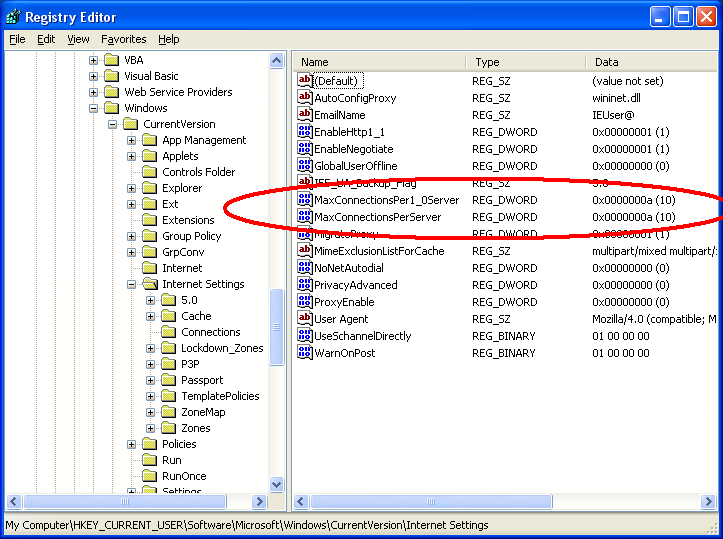
This is to increase the the number of maximum downloads to 10.

1. Open Registry Editor

2. Go to:-

HKEY_CURRENT_USER\Software\Microsoft\Windows\CurrentVersion\Internet Settings

3. On the right-hand side pane, right-click and go to New >> Dword value, and then add the following registry values:

"MaxConnectionsPer1_0Server"=Dword:0000000a
"MaxConnectionsPerServer"=Dword:0000000a

4. Refresh Registry Editor and exit.

Thursday, November 11, 2010

Is your web browser safe.?

Do you think that the web browser you use for internet browsing is safe..?
Do you think that your web browser is safe from different kinda attacks that the hacker can perform.?

Its simple to test this, click here for direct link  and go to    Start the Test

Its tests for the following vulnerabilities:-

1) Windows animated cursor overflow.
2) Mozilla crashes with evidence of memory corruption.
3) Internet Explorer bait & switch race condition.
4) Mozilla crashes with evidence of memory corruption.
5) Internet Explorer createTextRange arbitrary code execution.
6) Windows MDAC ADODB ActiveX control invalid length.
7) Adobe Flash Player video file parsing integer overflow.
8) XMLDOM substringData() heap overflow.
9) Mozilla crashes with evidence of memory corruption (rv:1.8.1.5).
10) Opera JavaScript invalid pointer arbitrary code execution.
11) Apple QuickTime MOV file JVTCompEncodeFrame heap overflow.
12) Mozilla code execution via QuickTime Media-link files.
13) Mozilla crashes with evidence of memory corruption (rv:1.8.1.8).
14) Mozilla memory corruption vulnerabilities (rv:1.8.1.10).
15) Mozilla crashes with evidence of memory corruption (rv:1.8.1.12).
16) Apple QuickTime 'QTPlugin.ocx' ActiveX Control Multiple Buffer Overflows()
17) Window location property cross-domain scripting.
18) Mozilla Firefox MathML integer overflow.
19) Internet Explorer XML nested SPAN elements memory corruption.

 Note:-
The browser may crash when you perform this test. This crash helps to determine which vulnerability caused the browser to crash.
 This test is hardly done by any known individual but it is highly recommended and is very helpful.

Monday, November 8, 2010

160by2 SMS Application for Mobile : Save your SMS costs

      Download 160by2 - the Free SMS service-on your mobile and enjoy free SMSing whenever you want. It's now easy to send SMS anywhere to on any mobile device within India. So, stay connected, even when you step out.

      The download file is just 28KB and very simple to install. 160by2 on mobile is designed with a familiar look and feel, plus added features that will bring out the best of your mobile.
      The Application allows accessing your contacts from 160by2.com account as well as from your phone book. Whats More? You can also upload and backup your Phonebook contacts on 160by2. Just go ahead and start downloading now!!!

      160by2 Application offers you two ways of SMSing. You can now send SMS with or without a GPRS connection on your mobile.


1) SMS with GPRS Connection
The "VIA GPRS" feature of 160by2 allows you to send Free SMS from your GPRS enabled device. The additional features include :
a) No need to Login (even if you exit the application) every time you want to access 160by2. It keeps you loggedin until you logout.
b) You can access all your contacts from 160by2.com account as well as from your phone book
c) You can now upload and backup your phone book on 160by2.

2) SMS without GPRS Connection
Don't have an Internet connection on your mobile? Still you can Enjoy SMSing. The valuable "Via SMS" feature of 160by2 allows you to send SMS anywhere in India without an active GPRS connection.
a) There is no need to Login . User is validated based on his mobile number.
b) You can send SMS upto 10 recipients at a time and shall be charged only for cost of ONE SMS as per your tariff plan.
c) You can include recipients as individual mobile numbers or as 160by2 Group Names.


Download 160by2
 Java(J2ME) | 28 KB

Thursday, November 4, 2010

DU Meter : Keep an eye on your internet usage

A utility that provides an accurate account of the data flowing through your computer's network connection at any given moment. This readout is presented in both numerical and graphical format, in real time. DU Meter includes extensive logging facility, flexible events system, and more. DU Meter works with virtually all types of network connections: phone modems, DSL, cable modem, LAN, satellite etc. 

The current version includes some superb new features including full logging and reporting capabilities with export to many different file formats, including Excel and HTML. It also has an auto hide feature, monitoring of online hours with alerts, a fully customizable interface, and a great stopwatch which helps you to accurately time your downloads.

 *Keep an eye on your Internet connection: see data coming in or going out.
*Protect yourself from unexpected charges or Internet service disruption.
*Receive alerts about dangerous or unexpected network activity.
*Easy to use - works automatically with no user input required.
*Uses very little resources, fully compatible with Windows 7, Vista and XP.
*Auto-hide feature minimizes the meter to the system tray in the absence of network activity.


Windows 7/Vista/XP 2MB

Wednesday, November 3, 2010

Remote Sign out and last login tracking feature In Gmail

     If you suspect that someone is intercepting your email or your Gmail account is hacked or your are victim of phishing, then there is a good news for you. Now Google has added a new layer of information and control. With this new feature, you can keep a track of your recent sessions and you can also sign yourself out remotely.
     At the bottom of your inbox, you'll see information about the time of the last activity on your account and whether it's still open in another location:

     Using the feature, you can determine or verify if your mailbox was opened from another location.
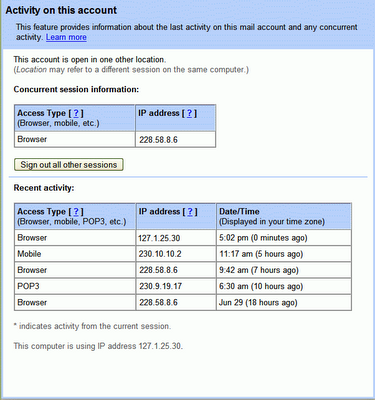
You can get more details about your recent activity by clicking on the Details link:


      The top table, under "Concurrent session information," indicates all open sessions, along with IP address and "access type" -- which refers to how email was retrieved, (for example, through iGoogle, POP3 or a mobile phone). The bottom table, under "Recent activity," contains my most recent history along with the time of access. You can also view your current IP address at the very bottom of this window, where it says "This computer is using IP address..."

      With this information, you can quickly verify that all the Gmail activity was indeed yours. If you remember your past login time and if you have forgot to logout then you can also click on the "Sign out all other sessions" button to sign out of the account you left open at home.

Sunday, October 31, 2010

Make browsing simple - Firefox shortcuts


      More than 35% of the internet browsers use Mozilla Firefox as their default browser. Shortcuts mentioned below are very useful and time-saving while surfing, some with the keyboard and some with the mouse.
  
Help F1
Add Boookmark  CTRL+D
Bookmarks Sidebar  CTRL+B
History  CTRL+H
Clear Private Data  CTRL+SHIFT+Del
Full Screen  F11
Increase Text Size  CTRL++
Decrease Text Size  CTRL--
Restore Text size CTRL+0
Reload  F5
Force Reload(Cache override)  CTRL+F5
Stop Loading  Esc
Save Page  ALT+Left-Click
Page Source  CTRL+U
DOM Inspector  CTRL+SHIFT+I
Go Down One Line   DOWN key
Go Up One Line  UP key
Go down One Screen  PageDown OR Spacebar
Go Up one Screen  PageUp OR SHIFT+Spacebar
Go To Bottom of the page  END
Go to Top of Page  HOME
Move to next Frame  F6
Move to Previous Screen  SHIFT+F6
Move Focus To Next Actionble Item  TAB
Move Focus to Previous Actionable Item  SHIFT+TAB
Open Home Page  ALT+HOME
Back one page  ALT+Left key 
Forward one page   ALT+Right Key
Open Link in New Tab  CTRL+Left Click
Open Link in New window  Shift+Left-Click
Open New Tab  CTRL+T
Close Tab   CTRL+W
Undo Close Tab  CTRL+SHIFT+F4
Next Tab  CTRL+Tab
Previous Tab  CTRL+SHIFT+Tab
Select Tab[1...9]  CTRL+[1..9]
Open New Window  CTRL+N
Go to Address Bar  CTRL+L OR ALT+D
AutoComplete .com address  CTRL+Enter
AutoComplete .net address  SHIFT+Enter
AuotComplete .org address  CTRL+SHIFT+Enter
Open adress in new tab  Alt+Enter
Open File  CTRL+O
Select Search Bar  CTRL+K
Select Next Search engine in search bar CTRL+Down key
Find Text  CTRL+T

Tuesday, October 26, 2010

Ran out of space in Gmail?? Gain some extra space…

Has your email inbox run out of storage space??And now u urgently need to free up space to avoid mails from returning to the sender…
The most basic thing you need to do now is by more space from Google. And we don’t think this makes sense
Now you will think to delete the mails and that too the massive or bigger ones. But did you know unfortunately Google has no way to sort emails according to size.
But there is a new service called findbigmail.com that can help you easily filter out all the big mails in your inbox.
 
 
To get started you simply connect your Gmail account with Find Big Mail using Google’s OAuth-this means you don’t have to share your Google Account credentials with the service. It then scans all your existing mails and will send you notification once the scanning is done. (Ours took around 4 minutes).
That’s it! You can now login to your Gmail account and Trash Forward mails marked with “Big Mails” to instantly reclaim some precious space.


Ur comments are welcome

Saturday, October 23, 2010

Surf Safe on Facebook : A Security Tip

Hello Frndzz..
There have been issues related to Facebook Security these days...
Many people have fell prey to fake login attacks on Facebook and these
innocent users are exploited by these attacks and end up revealing their credentials

So here is a smart and simple tip which will prevent from fake login attacks...
Usually in these attacks you wud be prompted to change your password...
but be careful its possible that you are typing ur credentials on a fake page...

Here is how u differentiate between a fake page and a legitimate page
Look at the below image carefully... many of u wud be knowing this... but newbies have a look

Verification
1. Verification Information Identifies a website for its integrity (Legitimate Sites). Its appears usually in blue or green colour in place of the favicon.  Click on the green tab for detailed info on site.
2. Whenever you are prompted to change a password and redirected to a page make sure to check the  verification information of the page.
3. The Verification looks as highlighted by the red circle in the image. We are using an example in mozilla web browser (in image).
4. So just check this out while changing your password or other account settings.
5. If you don't see on your page while changing account settings or passwords please navigate away from the page. Clear your cache, delete history and then try logging in again.

Following these simple steps you can always prevent your account from hackers and surf safe    
Your comments and questions are welcome !!

Tuesday, October 5, 2010

Download IE9 : Be the First to Experience it

Guyz.... Heard of the new and improved Internet Explorer ....
Now surf the web and do hassle free net banking and transaction with enhanced security
Herez the latest version of Internet Explorer i.e. IE9


Salient Features Include:
1. Improved Browsing Experience with embraced GPU
2. Enhanced Security With 256bit Cipher Strength
3. Interactive Feature that adjusts the Browser and Addons according to ur connection
4. New and improved download manager for faster downloads

So what are you waiting for 
Download Internet Explorer 9 18.7Mb Win7|Vista